EN
EN DE
DE ES
ES FR
FR NL
NL PT
PT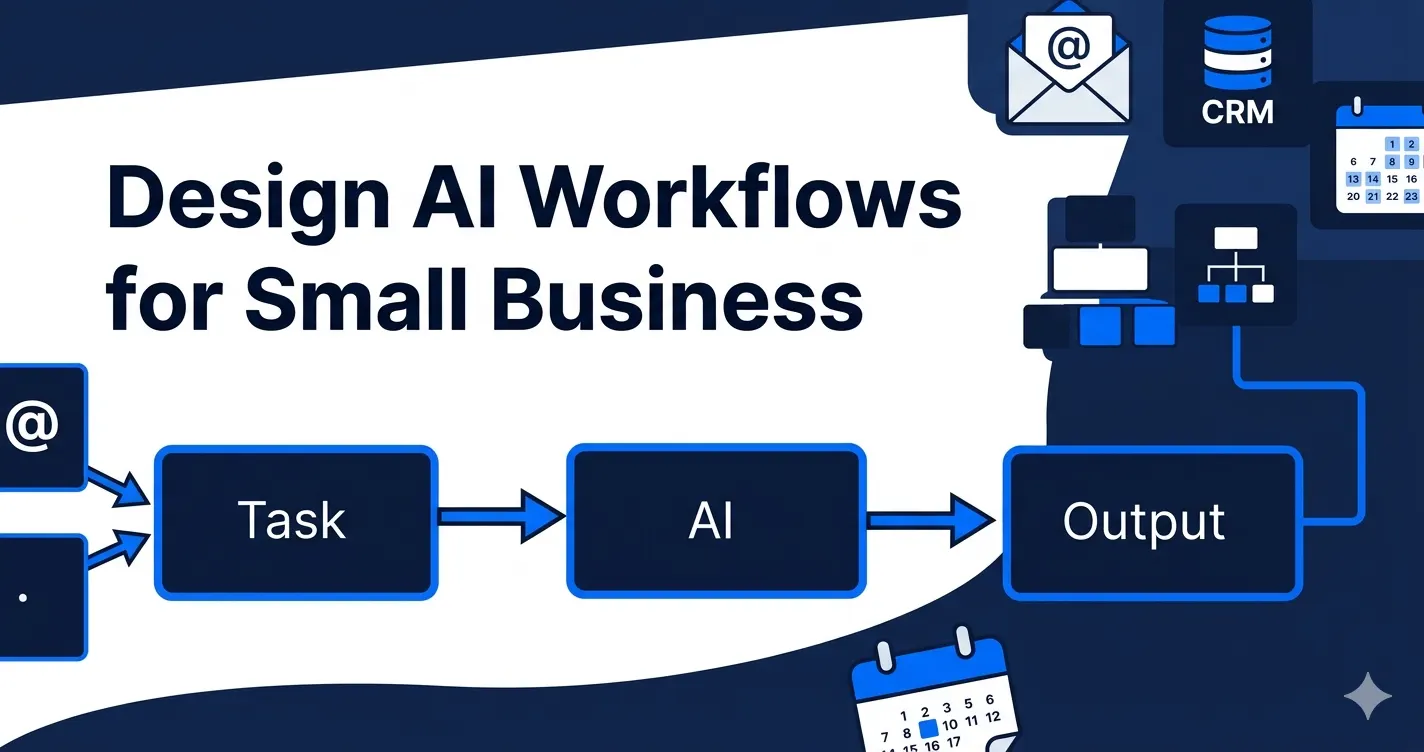
Most small businesses lose 20+ hours a week to work that should not exist. Email responses. Lead follow-ups. CRM updates after every call. Scheduling. Document generation. These tasks are manual, repetitive, and expensive.
Automiq AI builds custom AI workflows that eliminate this work. But before automation happens, there’s a design question: which tasks do you automate first, and how do you connect them to your existing tools?
This guide walks you through the framework for designing AI workflows that recover 10-40 hours per week for small service businesses. No technical background required.
Quick Answer: How to Design AI Workflows for Small Businesses Map your high-pain, high-frequency tasks (lead response, CRM updates, scheduling). Choose the right automation trigger and output. Connect the workflow to your existing tools (CRM, email, calendar). Done-for-you agencies handle the build — you just need to understand the design framework to evaluate solutions.
Why Most Small Businesses Waste 20+ Hours a Week on Work That Shouldn’t Exist
Your team is answering the same inbound emails manually. Every lead that comes in waits 24 hours for a response while your team finishes client work. After every sales call, someone manually updates the CRM with notes, next steps, and deal stage. Proposals are built by copying client data from one system and pasting it into a Word template.
McKinsey found that generative AI could automate activities that absorb 60-70% of employees’ time, with the largest impact on administrative and knowledge work. Yet most small businesses don’t automate these tasks because they don’t know where to start.
The problem isn’t that automation is too expensive. It’s that most automation content is written for developers building workflows themselves. If you’re a business owner who just wants the result, the gap between “AI can help you” and “here’s the working system” feels massive.
Here’s what designing an AI workflow actually looks like.
What Is an AI Workflow (and Why It Matters More Than AI Tools)
An AI workflow is the complete design of an automated process. It includes:
- The task being automated (what manual work disappears)
- The trigger (what event starts the automation)
- The AI logic (what decisions the workflow makes)
- The output (what happens automatically)
- The integrations (which tools the workflow connects to)
A tool like Zapier, Make, or n8n is just the execution layer. The workflow is the strategy.
Here’s the difference: saying “I use ChatGPT to write emails” is using a tool. Saying “I have an AI workflow that detects inbound lead emails, qualifies them based on industry and budget, drafts a personalized response, and sends it within 5 minutes” is a workflow.
Tools are helpful. Workflows save hours.
The 3-Step Framework for Designing AI Workflows
Most businesses try to automate everything at once and get overwhelmed. The right approach is to design one high-impact workflow, deploy it, measure the hours saved, then design the next one.
Here’s how to design your first workflow.
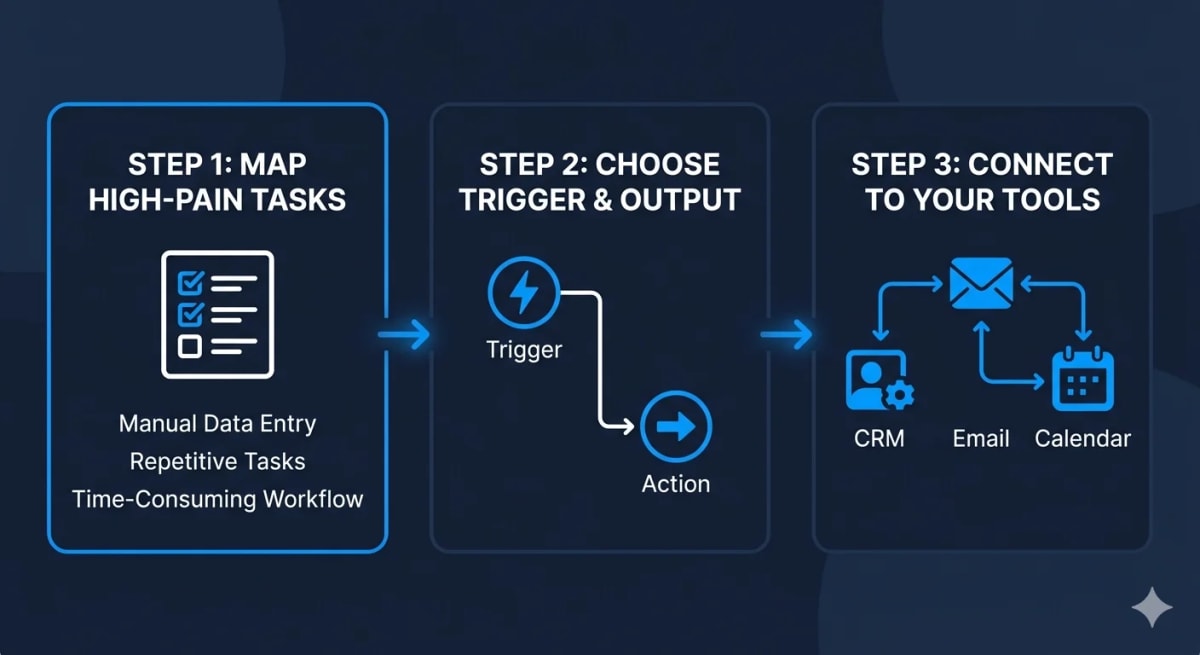
Step 1: Map Your High-Pain, High-Frequency Tasks
Not all tasks are worth automating. Start by listing the manual tasks your team does every week. Then filter the list with two questions:
- How painful is it? (Does it interrupt client work? Does it cause delays? Do people complain about it?)
- How frequent is it? (Does it happen daily or weekly?)
High-pain, high-frequency tasks are your first automation targets.
Examples of high-ROI tasks for small service businesses:
- Responding to inbound lead emails (happens daily, delays cost deals)
- Updating CRM records after calls and meetings (happens after every client interaction)
- Scheduling follow-up reminders (happens after every discovery call)
- Generating proposals from client data (happens weekly, takes 1-2 hours per proposal)
- Routing inbound calls to the right person based on caller intent (happens daily, missed calls cost revenue)
Pick one task from your list. That’s the workflow you’re designing.
Step 2: Choose the Right Automation Trigger and Output
Every workflow starts with a trigger (the event that starts the automation) and ends with an output (what happens automatically).
For the task you picked in Step 1, answer these questions:
| Question | Example Answer (Lead Response Workflow) |
|---|---|
| What event triggers this workflow? | New email arrives in inbox from a domain not in the CRM |
| What data does the workflow need? | Sender email, subject line, email body, sender’s company name |
| What decision does the AI make? | Is this a sales inquiry, support request, or spam? |
| What action happens automatically? | Draft a personalized response based on inquiry type, send it within 5 minutes |
| Where does the output go? | Reply sent from your email. Contact added to CRM with lead source tag. |
The clearer your answers, the easier the build becomes. If you can’t answer these questions yet, spend 30 minutes observing how your team does this task manually. Write down every step. The workflow is just those steps, executed automatically.
Step 3: Connect the Workflow to Your Existing Tools (CRM, Email, Calendar)
Workflows don’t live in isolation. They connect to the tools you already use.
For most small businesses, that means:
- Email (Gmail, Outlook)
- CRM (HubSpot, Pipedrive, Salesforce)
- Calendar (Google Calendar, Outlook Calendar)
- Communication (Slack, Microsoft Teams)
- Scheduling (Calendly, Acuity)
The third step in designing a workflow is mapping which tools it touches. A lead response workflow might pull data from Gmail, write to your CRM, and send a calendar invite via Google Calendar.
Most DIY platforms (Zapier, Make, n8n) support these integrations. The technical challenge isn’t whether the connection is possible. It’s building it correctly so the workflow doesn’t create duplicate records, miss edge cases, or break when one tool updates its API.
That’s why most small businesses choose done-for-you automation over DIY tools. The design is straightforward. The build and maintenance are where expertise matters.
Example: Designing an AI Lead Response Workflow
Here’s what the design process looks like for a real workflow.
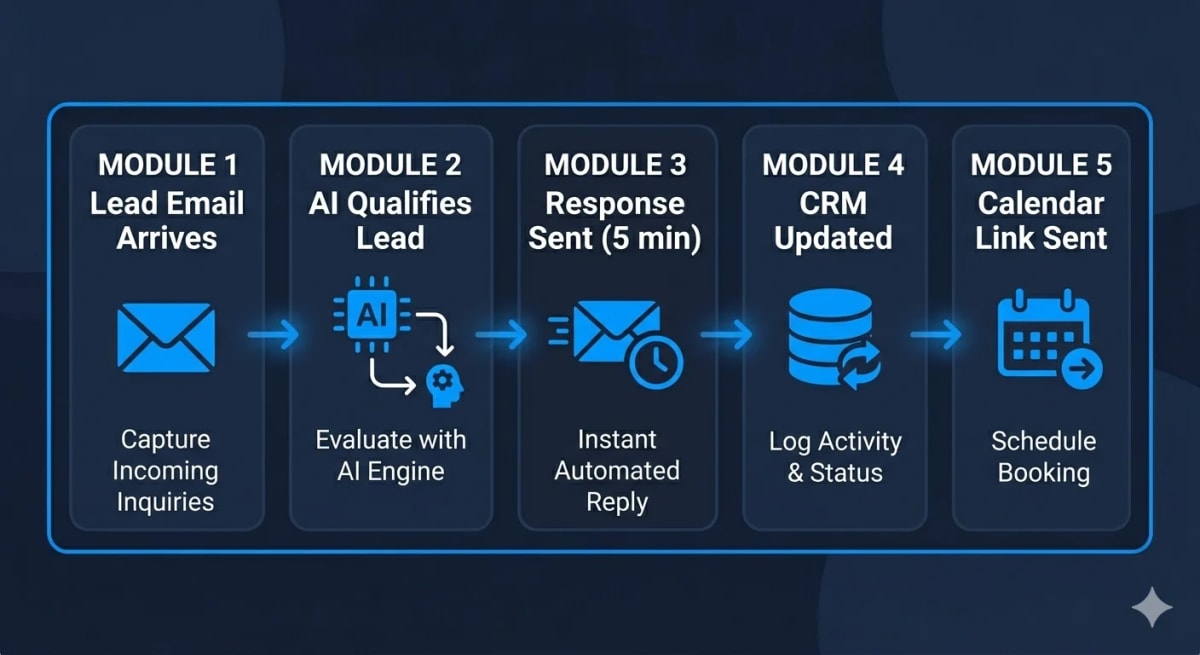
Scenario: You’re a law firm with 5 staff. Inbound lead inquiries arrive via your website contact form and land in a shared Gmail inbox. Your team manually reviews inquiries, qualifies leads, and sends a response. Average response time: 24 hours. You want to cut that to 5 minutes.
Step 1 — Map the task: High-pain: Yes. Slow response times cost deals. Qualified leads go cold waiting for replies. High-frequency: Yes. 15-20 inquiries per week.
This task is a strong automation candidate.
Step 2 — Define trigger and output:
| Element | Value |
|---|---|
| Trigger | New email arrives in shared inbox from a sender not in CRM |
| Data needed | Sender name, email, inquiry subject, message body, phone number (if provided) |
| AI decision | Qualify lead based on case type (family law, estate planning, business litigation, out-of-scope) |
| Output | Personalized response drafted and sent within 5 minutes. Lead record created in CRM with qualification tag. Calendar link included for qualified leads. |
Step 3 — Tool connections:
- Gmail (inbound emails)
- OpenAI (qualification logic and response drafting)
- HubSpot CRM (lead record creation)
- Calendly (calendar link insertion)
Outcome: Your team no longer manually triages inbound emails. The AI workflow responds within 5 minutes, qualifies the lead, updates the CRM, and books discovery calls automatically. Hours saved: 8-12 hours per week.
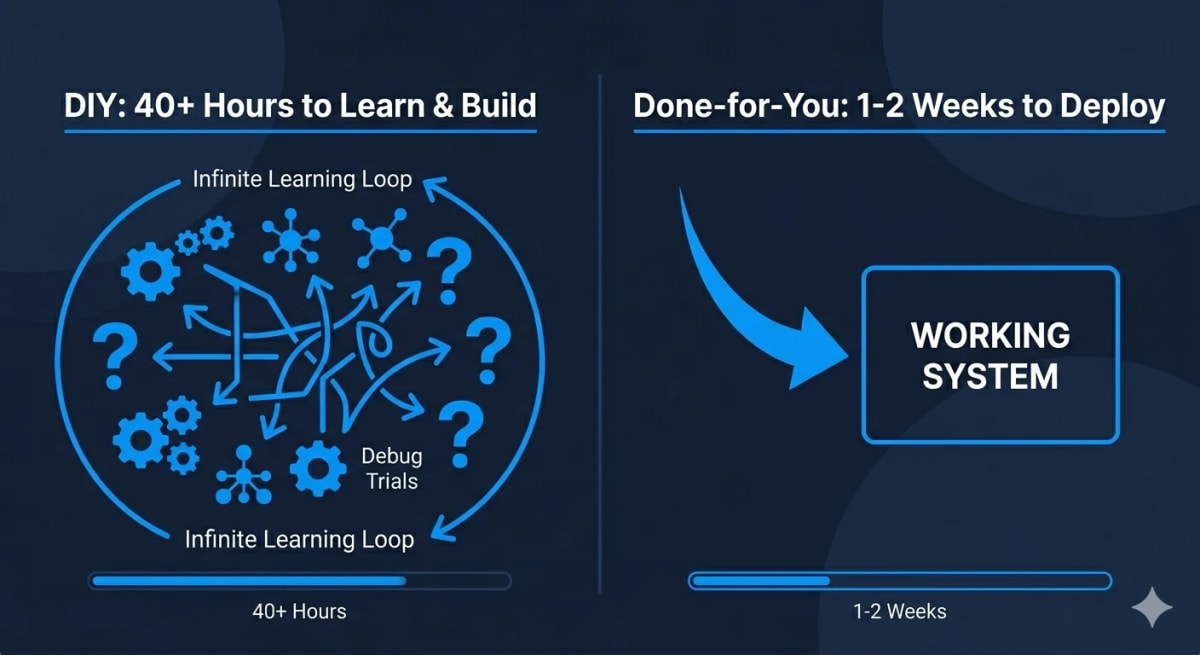
This workflow can be built using tools like n8n or Make. But building it yourself requires 40+ hours if you’re learning these platforms from scratch. Working with Automiq AI means you describe the problem, approve the design, and receive the working system in 1-2 weeks.
Done-for-You vs. DIY: When to Build vs. When to Hire
Understanding workflow design helps you evaluate your options. But design is only half the work. The other half is building, testing, and maintaining the automation.
Here’s how the options compare:
| Approach | Time Investment | Technical Skills Required | Ongoing Maintenance | Best For |
|---|---|---|---|---|
| DIY with Zapier/Make/n8n | 40+ hours to learn and build your first workflow | Moderate to high — requires understanding triggers, API connections, error handling | You own it — troubleshooting, updates, and fixes are your responsibility | Businesses with in-house technical staff or founders who want to learn automation tools |
| Freelancer (Fiverr/Upwork) | 10-20 hours for project scoping and revisions | Low — freelancer handles the build | Variable — depends on freelancer availability and your contract terms | One-off automations where you have a detailed spec and don’t need strategy |
| Done-for-you (Automiq AI) | 2-4 hours for discovery call and workflow review | None — we design, build, test, and deploy | Included for 30-60 days post-launch, depending on package | Businesses that want working systems without the learning curve or hiring overhead |
Deloitte reports that 75% of businesses cite lack of technical expertise as the primary barrier to AI adoption, not cost or technology availability. Most small businesses don’t fail because they picked the wrong tool. They fail because they don’t have 40 hours to spend learning it.
If you want the result — 10-40 hours recovered per week — and you don’t want to become a workflow engineer, done-for-you is the practical choice. See how Automiq AI packages are structured for different workflow needs.
Common Workflow Design Mistakes to Avoid
Even with the right framework, most first-time workflow designers make predictable mistakes. Here’s what to avoid.
Mistake 1: Automating the Wrong Tasks First
Low-frequency, low-pain tasks feel easier to automate because they’re simple. But simple doesn’t mean high-impact.
Automating a task that happens once a month and takes 10 minutes saves you 2 hours per year. Automating a task that happens daily and takes 30 minutes saves you 180 hours per year.
Start with the high-pain, high-frequency tasks. Ignore everything else until the first workflow is live and saving hours.
Mistake 2: Over-Complicating the Workflow with Too Many Steps
A workflow with 15 steps and 8 conditional branches is fragile. Every added step is a potential failure point.
Good workflow design is minimal. Ask: what’s the simplest path from trigger to output? If a step doesn’t directly contribute to the outcome, remove it.
Example: A lead response workflow doesn’t need to check the lead’s LinkedIn profile, pull their company revenue from a database, and run a credit check before drafting a reply. It just needs to qualify intent (are they a real inquiry?) and send a response.
Mistake 3: Not Connecting Workflows to Existing Tools
If your workflow writes data to a new tool instead of your CRM, you’ve created a data silo. Now your team has to check two places for client records.
Workflows should integrate with the tools you already use. That’s the design advantage of done-for-you services like Automiq AI. We build workflows inside HubSpot, Pipedrive, Gmail, Outlook, and Calendly. Your team doesn’t learn a new platform.
Mistake 4: Skipping Testing and Validation Before Deploying
A workflow that works 95% of the time is a workflow that breaks 1 in 20 times. In a small business handling 100 leads per month, that’s 5 broken interactions.
Before you deploy a workflow to production, test edge cases:
- What happens if the email body is empty?
- What happens if the sender’s domain is Gmail (not a company domain)?
- What happens if the CRM API is down?
- What happens if the email contains an attachment?
DIY builders often skip this step because testing is tedious. Done-for-you agencies include it as part of the build process.
Frequently Asked Questions
Do I need technical skills to design AI workflows?
No. Understanding workflow design helps you evaluate solutions, but you don’t need to build workflows yourself. Done-for-you agencies like Automiq AI handle the design, build, and deployment. You just describe the problem you’re solving.
How long does it take to design a workflow?
Mapping a high-impact workflow typically takes 1-2 hours. Building and deploying it yourself can take 40+ hours if you’re learning DIY tools. With a done-for-you service, you receive a working system in 1-2 weeks without touching the build process.
What’s the difference between an AI workflow and a Zapier automation?
A Zapier automation is a technical execution inside one tool. An AI workflow is the complete design: what task is automated, why, what triggers it, how it connects to your existing systems, and what outcome it produces. Zapier is one tool you might use to execute the workflow.
Can I design workflows without learning to code?
Yes. The design phase is about mapping your business processes and identifying what to automate. The build phase is where technical skills matter, and that’s what done-for-you agencies handle for you.
How much does it cost to implement an AI workflow?
Costs vary based on complexity. At Automiq AI, starter workflows range from $99-$499 for a single high-impact automation. Growth packages ($699-$1,699) cover up to 5 workflows with CRM integration and post-launch support. Full transformation packages are custom-priced for businesses committing to AI-powered operations.
Next Steps: From Design to Deployment
You now understand the 3-step framework for designing AI workflows: map high-pain tasks, define triggers and outputs, and connect workflows to your existing tools.
The design is the strategic layer. The build is the technical layer. Most small businesses don’t fail at design. They fail at execution because they don’t have 40+ hours to learn DIY platforms or hire and manage freelancers.
That’s the problem Automiq AI solves. We handle the design, build, testing, and deployment. You describe the task you want automated. We deliver the working system in 1-2 weeks.
No new platforms to learn. No hiring a developer. No 40-hour learning curve.
Ready to recover 10-40 hours a week without building automations yourself? Book a free discovery call with Automiq AI and get a custom workflow blueprint designed for your business.